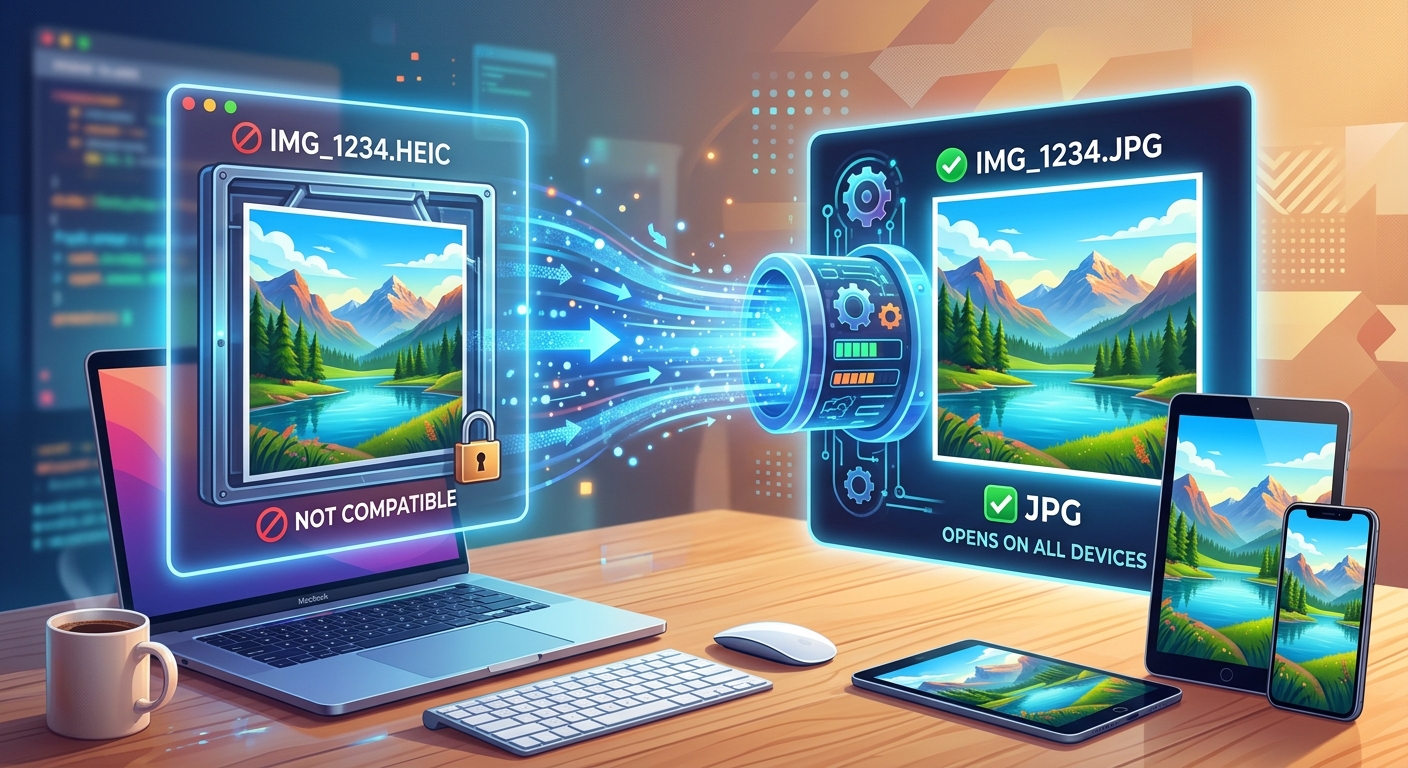
You tap send. The photos leave your iPhone looking perfect. Then the message comes back: "I can't open these." Your friend on Windows, your colleague on an older Android, your client trying to download the files , they all hit the same wall. The culprit is a tiny four-letter file extension: .heic. And the fix is simpler than the frustration makes it feel.
What You Need to Know First
- HEIC is Apple's default photo format, and most non-Apple devices cannot open it without extra software.
- Converting to JPG takes less than a minute and makes your photos work everywhere, every time.
- For uploading images to a blog or website, WebP offers smaller file sizes than JPG and is worth a look.
When HEIC Files Cause Problems on Non-Apple Devices
Apple switched iPhones to the HEIC format in 2017 with iOS 11. The motivation was reasonable: HEIC photos are roughly half the size of JPGs at similar visual quality. For a phone holding thousands of photos, that saving adds up fast.
The issue is compatibility. HEIC works beautifully inside the Apple ecosystem. But the moment a photo leaves that world, the walls go up. Windows PCs, older Android devices, standard email clients, and most web upload forms simply do not know what to do with a .heic file.
These are the most common places where HEIC files fail to open:
- Windows PCs that have not installed the HEVC Video Extensions codec from the Microsoft Store
- Android phones running versions older than Android 9
- Standard email clients such as Outlook when receiving photo attachments
- Website upload forms for blogs, e-commerce product pages, and contact portals
- Photo printing services that only accept JPG or PNG files
- Older document editors, presentation tools, and PDF builders
If any of those sound familiar, converting to JPG is the reliable fix.
What HEIC Actually Is and Why Apple Uses It
HEIC stands for High Efficiency Image Container. It is the file format Apple uses to store photos taken with the iPhone camera. The container is built on the HEIF image standard, a format developed by the Moving Picture Experts Group as a modern replacement for JPEG.
HEIC handles transparency, supports wider HDR color ranges, and can store multiple frames in a single file. That last part is why Live Photos work the way they do. It is genuinely a capable format for what it does.
The gap is history. JPG has had decades of universal support built into every device, browser, printer, and operating system on the planet. HEIC does not have that foundation yet. Until it does, converting to JPG remains the most practical path for sharing photos outside of Apple devices.
Four Ways to Convert HEIC to JPG Right Now
You have options depending on which device you are working from. Here are the four most reliable methods, starting with the one that requires no software at all:
- Use a free online converter. Open a browser, upload your HEIC file, and download the JPG. No software to install, no account needed. Works from any device on any operating system. This is the fastest path for most people.
- Change your iPhone camera settings. Go to Settings, then Camera, then Formats, and switch from "High Efficiency" to "Most Compatible." Your iPhone will shoot in JPG from that point forward. This does not convert existing HEIC files, but it stops new ones from being created.
- Use Windows Photos or Paint. On Windows 10 and 11, you can open HEIC files after installing the free HEVC Video Extensions from the Microsoft Store. Once installed, open the HEIC file in Photos, click the three-dot menu, and choose Save as to export it as a JPG.
- Use Mac Preview to export. On a Mac, open your HEIC file in Preview, click File, then Export, and choose JPEG from the format dropdown. Adjust the quality slider before saving, then hit Save. Done in under thirty seconds.
Conversion Methods Side by Side
| Method | Works On | Speed | Best For |
|---|---|---|---|
| Free online converter | Any device with a browser | Under 1 minute | One-off conversions on any OS |
| iPhone camera settings | iPhone (iOS 11 and later) | Instant for future photos | Stopping HEIC at the source |
| Windows Photos + HEVC codec | Windows 10 and 11 | A few clicks | Windows users with the codec installed |
| Mac Preview export | macOS | A few clicks | Mac users converting files one at a time |
Choosing the Right Format for Your Blog or Website
For almost every situation, JPG is the right destination. It opens on every device, uploads to every platform, prints without issues, and attaches to emails without complaint. For daily sharing by text, email, or social media, converting HEIC to JPG and moving on is exactly the right call.
If you run a blog or regularly upload photos to a website, though, there is one format worth knowing about. WebP was designed specifically for the web. It produces files that are noticeably smaller than JPG at the same visual quality, which translates directly into faster page loads. Faster pages improve the experience for your readers and carry weight in search rankings.
For that specific use case, going straight from your iPhone photos to HEIC to WebP skips the JPG step entirely and lands you in the format modern browsers are built to prefer. All major browsers have supported WebP for years, so compatibility is no longer the barrier it once was for general web publishing.
Outside of website use, keep reaching for JPG. Email, documents, print services, and anything shared with people on older devices will all be more reliable in JPG format.
Getting Good Results Every Time You Convert
Converting a file is straightforward. Building a few small habits around it makes the results consistently better:
- Keep your original HEIC files as a backup before converting. The source always has more data than the exported JPG.
- For web use, aim for output JPG files under 200KB per image to keep page load times reasonable.
- Rename files descriptively before uploading to a website. Search engines read file names when indexing images.
- If you batch-convert a large folder, spot-check a handful of the outputs before deleting the originals.
- For professional print orders, confirm with the service which format they prefer. Most accept JPG, but large-format print jobs sometimes call for TIFF files.
Your Photos, Out of Lockdown
HEIC is not a bad format. For storing thousands of photos on a phone with limited storage, it is genuinely efficient. The problem is that it was never built to be a sharing format. That has always been JPG's role, and JPG has been doing it reliably since the early 1990s.
Converting your HEIC files to JPG is not a workaround. It is the right format matched to the right job. Your photos will open on your colleague's Windows machine, your client's Android, your relative's aging laptop, and every website upload form you encounter.
The process takes under a minute for a single file. Once it becomes a habit, those "I can't open this" messages stop entirely. And if you find yourself uploading photos to a blog regularly, take a closer look at WebP for that particular task. Smaller files, comparable quality, and better performance for the people reading your site. It is a small format decision that pays off quietly over time.