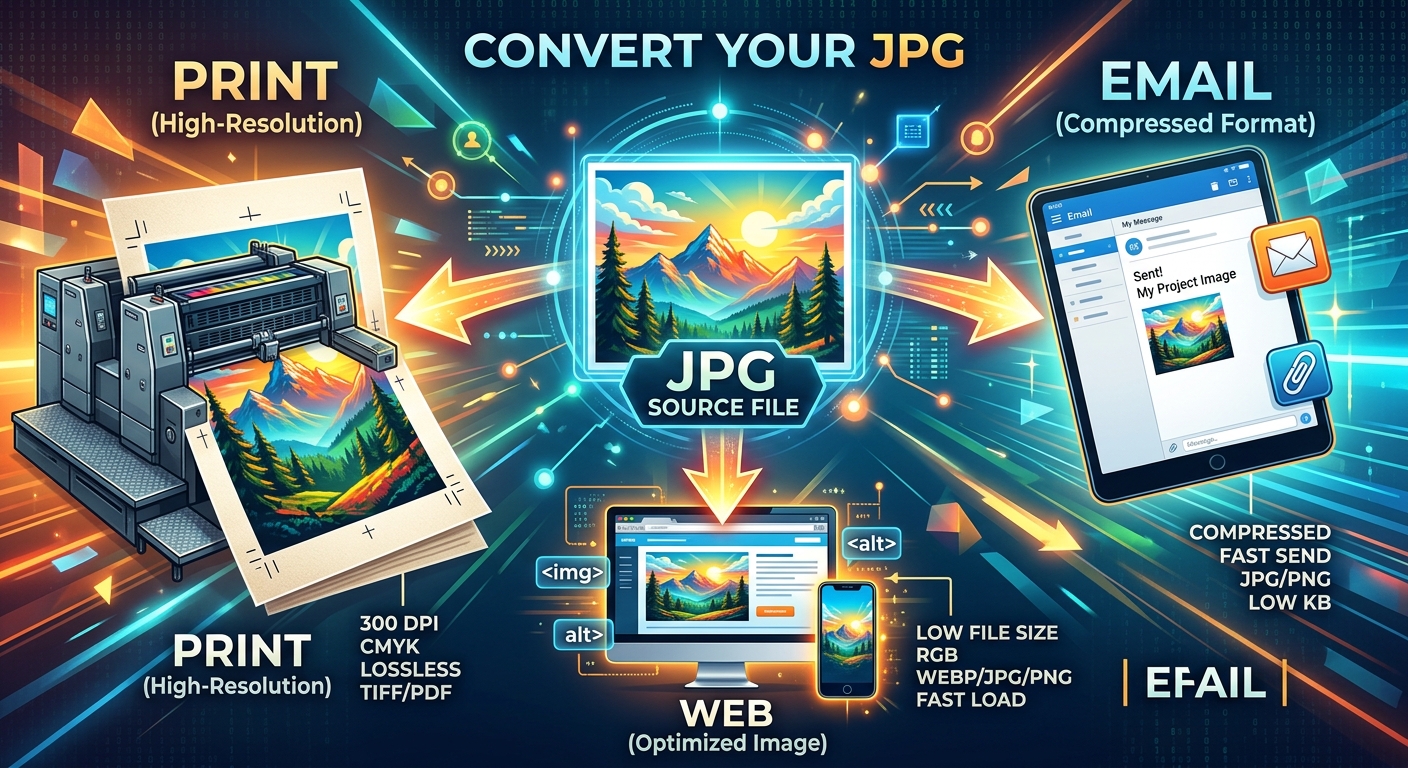
You have a JPG. It opens, it looks fine, and for most situations it gets the job done. Then a client asks for the file as a PDF, or your designer tells you the logo needs a transparent background, or someone points out that your website is loading slowly and your images are the problem. One format, three very different frustrations.
None of these situations require technical knowledge to fix. You just need to know which format fits which job, and why your JPG is falling short in that particular moment. Once that clicks, the path forward is simple.
Format Fix at a Glance
- Convert to PDF when a client or printer needs a polished, layout-stable file they can open without distortion on any device.
- Convert to PNG when a logo or graphic needs a transparent background so it sits cleanly on any surface or color.
- Convert to WebP when your website images are too heavy and slowing down how fast your pages load.
When a Client Asks for a PDF and Your JPG Falls Short
The situation often goes like this. You finish a flyer, a product sheet, or a design for a client. You save it as a JPG, attach it to an email, and send it over. The reply comes back asking if you can resend it as a PDF instead.
This request makes perfect sense, and it is not the client being difficult. A PDF is built for sharing files in a way that looks identical on every screen and every printer, regardless of the device or operating system on the other end. It preserves layout, sharpness, and any text elements without compressing them into the soft, slightly lossy result you get from a JPG.
JPG compression works by discarding some image data to reduce the file size. For a photograph on a blog post, that trade-off is completely acceptable. For a business proposal, a print-ready document, or anything a client needs to pass along to someone else, that data loss creates problems. Text edges look slightly rough. Fine details in a design look softer than they should. The file also does not carry the finality that a PDF does in a professional context.
PDFs are also universally trusted. Clients forward them without issue. Print shops accept them without extra setup. Email clients display them cleanly as attachments. If you are sending something meant to be printed, signed, reviewed by a third party, or archived, PDF is the format that fits that role.
The fix is to convert your JPG to PDF before you send it. You do not need to install any software or learn a design application. An online converter handles the process in seconds. You upload the file, it gets wrapped into a proper PDF container, and you download a version that behaves the way your client is expecting.
Why Logos with Transparent Backgrounds Need PNG Instead of JPG
This is a frustration that catches almost everyone by surprise the first time. You have a logo saved as a JPG. You drop it onto a website, a slide deck, or a colored background in a design. Instead of the logo sitting cleanly on the surface, it appears inside a white rectangle. The background did not disappear. It traveled with the file.
This happens because JPG simply does not support transparency. The format was created for photographs, and photographs do not have transparent areas. Every pixel in a JPG needs a color value, and when a logo with a transparent background gets saved as a JPG, those transparent areas get filled in with white. That information cannot be recovered from the JPG file afterward.
PNG was built differently. Each pixel in a PNG file can carry its own transparency value, a feature called an alpha channel. According to the PNG format standard, this alpha channel allows images to blend seamlessly onto any background color or pattern without any white border appearing around the edges. That is exactly what a logo needs when it goes onto a dark banner, a colored letterhead, or a patterned background in a presentation.
The fix is a JPG-to-PNG conversion. Once you have the PNG version, it can hold that transparent layer correctly. One important note: if your original design was built with a transparent background in a tool like Photoshop or Canva, you will get the best result by exporting directly from that source file rather than converting the JPG, because the transparency information was already lost at the JPG stage. But for many situations, particularly cleaning up a logo file you received from someone else, converting the JPG to PNG gives you a format that can actually do what the situation requires.
How the WebP Format Helps Your Web Pages Load Faster
Web performance tends to feel invisible until it becomes a real problem. Pages that load in three seconds, then four, then get flagged by a speed-testing tool for oversized images. Someone suggests switching to WebP, and you are left wondering what that actually means and why it matters.
WebP is a modern image format built specifically for the web. It produces smaller file sizes than JPG for the same visual quality, which means a browser fetching the page downloads images faster. On a page that includes several photos or graphics, the difference between a set of JPGs and the same images as WebPs can cut load time in a noticeable way. As Google's WebP overview explains, the format uses both lossy and lossless compression techniques that outperform JPEG and PNG in most real-world cases.
The practical problem is that most cameras, phones, and design tools still produce JPGs by default. WebP has strong browser support now, but it is not yet the default output for the software most people actually use day to day. That gap means you end up with a folder full of JPGs that are technically fine, but heavier than they need to be for web use.
The fix is converting your JPGs to WebP before uploading them to your site. A fast way to handle going from JPG to WebP, PDF, or PNG is to use an online conversion tool. You pick the output format, upload the image, and download the result. No installations, no settings to configure, no learning curve. The converted file goes straight into your workflow.
Matching the Format to the Moment
All three of these scenarios come back to the same root issue. JPG is a compression format designed for photographs. It trades a small amount of image quality for a smaller file size, and it handles that job well. The problem appears when your use case needs something the format was never designed to provide.
Sending a file to a client or printer? JPG compression introduces quality loss that PDF avoids entirely. Placing a logo on a surface that is not white? JPG fills transparent areas with white, which PNG handles without issue. Publishing images on a website where load speed affects the user experience? JPG files are consistently heavier than their WebP equivalents at the same visual quality.
Recognizing which limitation you are running into makes the format choice obvious. None of these conversions are complicated once you understand the reason behind them. You are not learning a new technical skill so much as matching the right container to the content inside it.
Your JPG got you this far. For the next step, it just needs to arrive in the format that actually fits the job.